How to use BabyTracker
Step-by-step with real screens from the app. Tap each item to open it.
🔑 Create your account▾
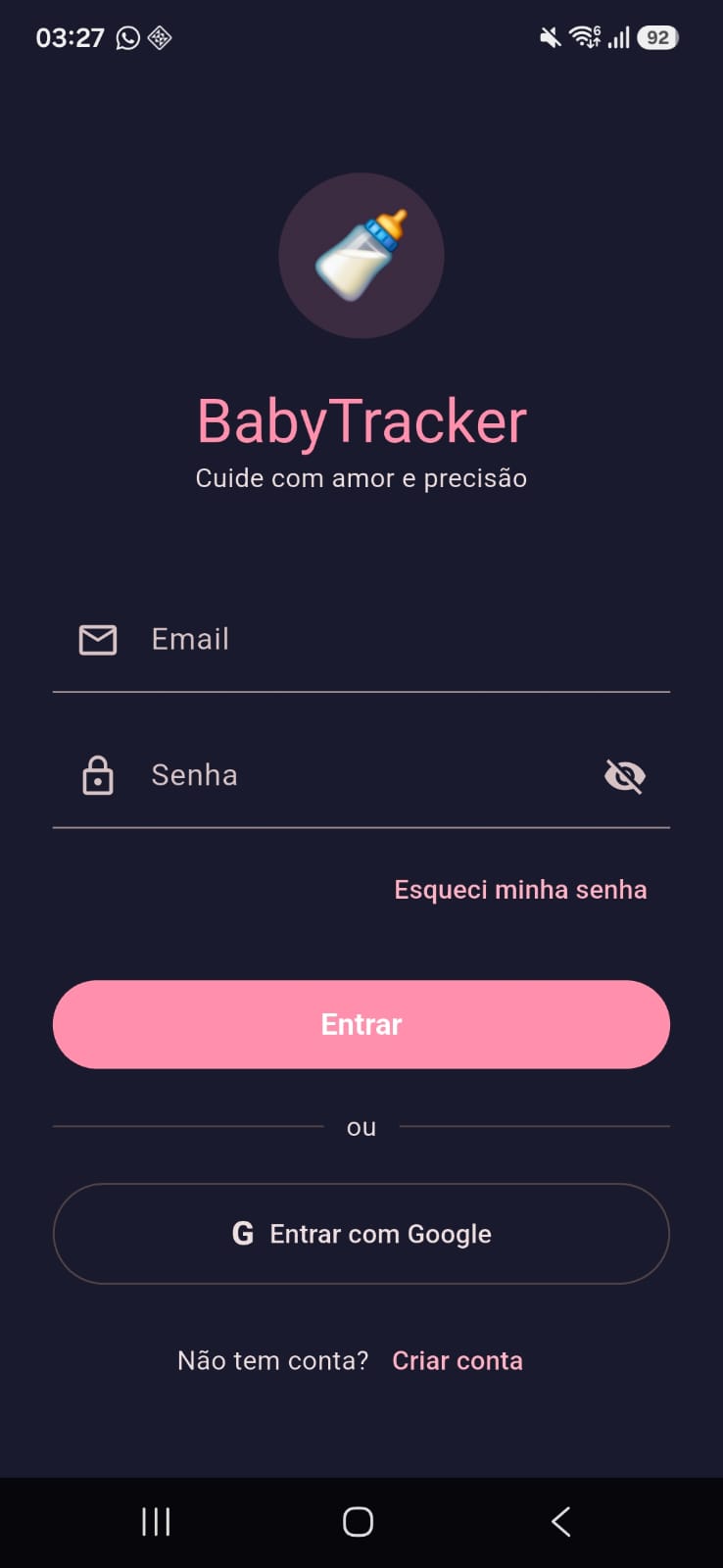
- Open the app for the first time — you'll land right on the sign-in screen.
- Tap "Create account" and fill in your name, email and password, or
- Tap "Sign in with Google" to use your Google account directly, no password needed.
👶 Add your first baby▾
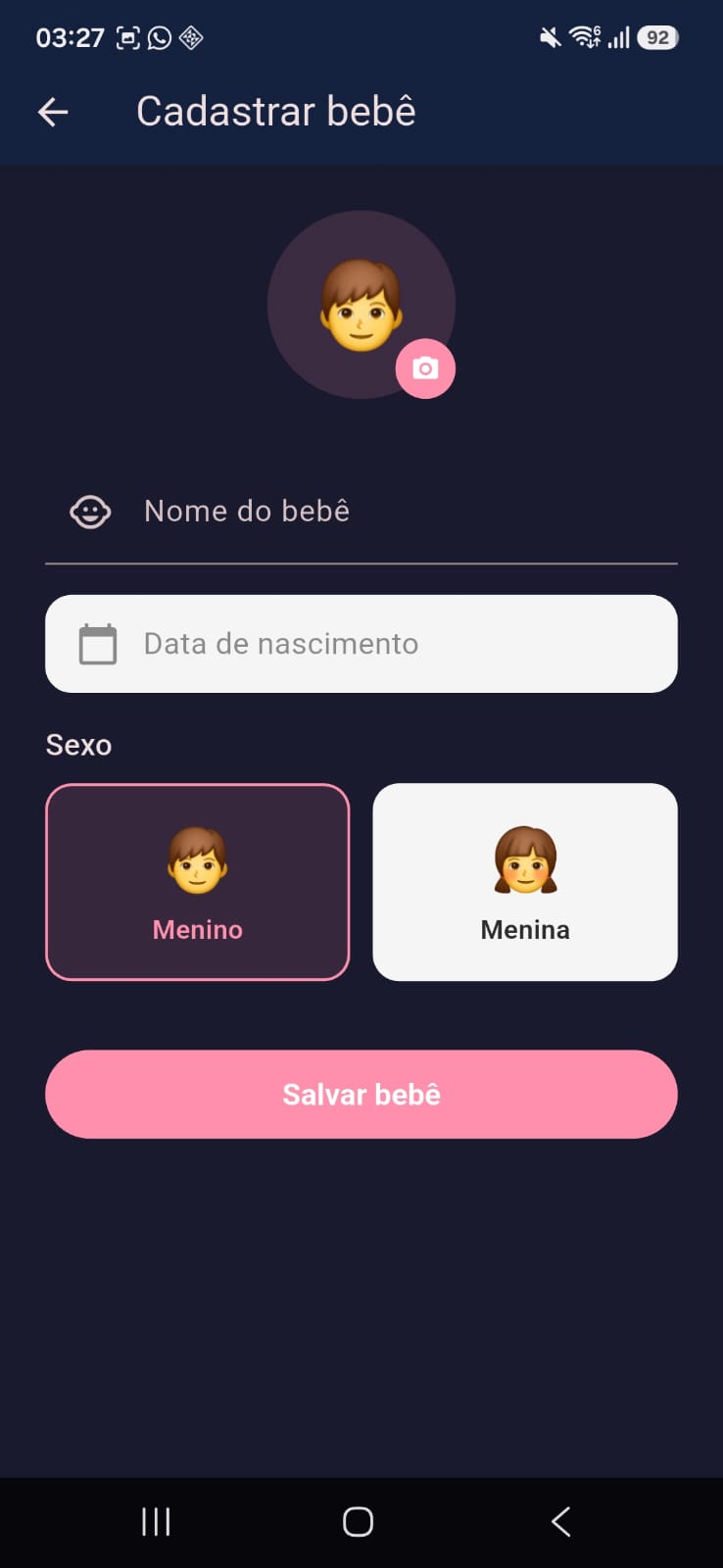
- After signing in, tap "Add baby" (it shows up on the Home screen or in Settings).
- Tap the photo to choose a picture, if you'd like.
- Fill in the name, date of birth and sex.
- Tap "Save baby".
📝 Log feedings, sleep, meals and diapers▾
🍼 Feedings
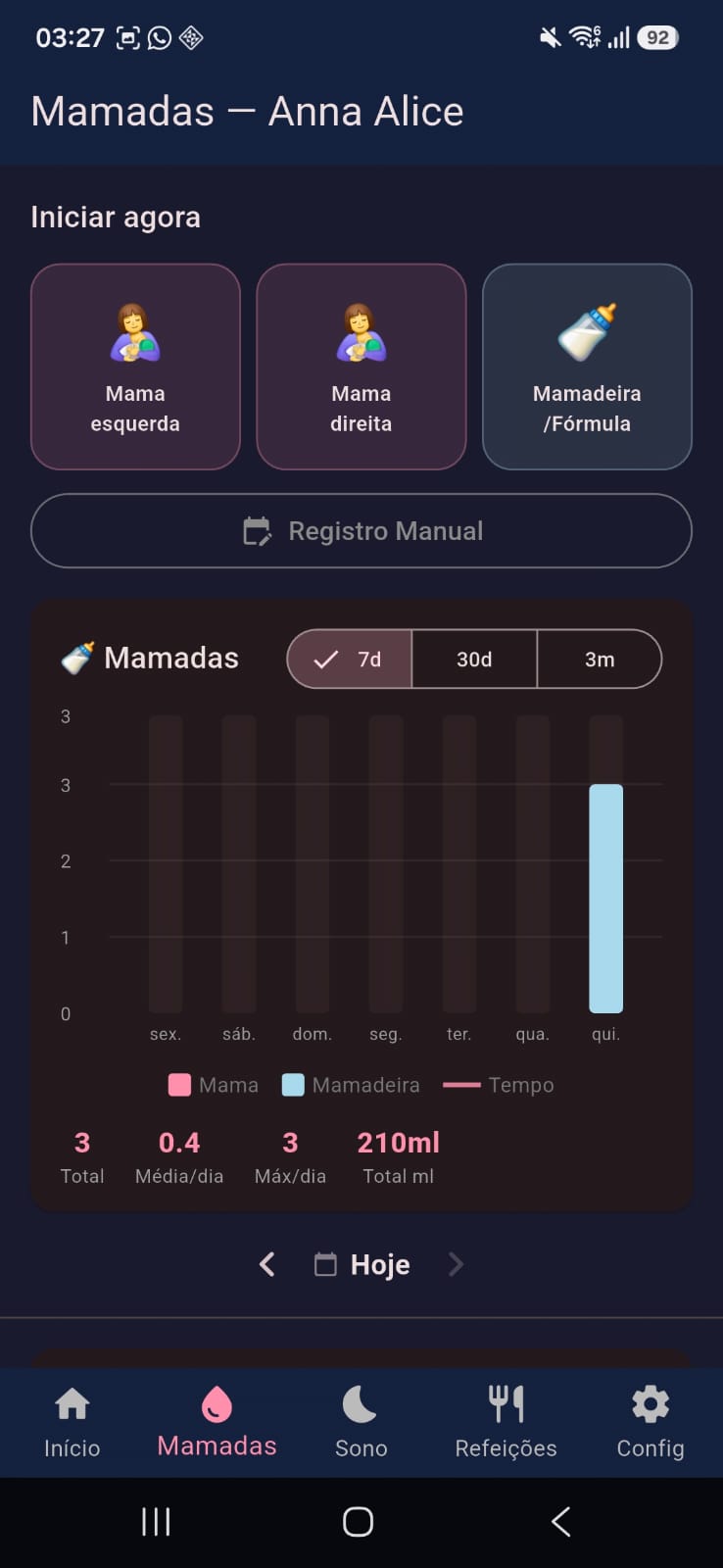
- On the Feedings tab, tap "Left breast", "Right breast" or "Bottle/Formula" to start a timer right away.
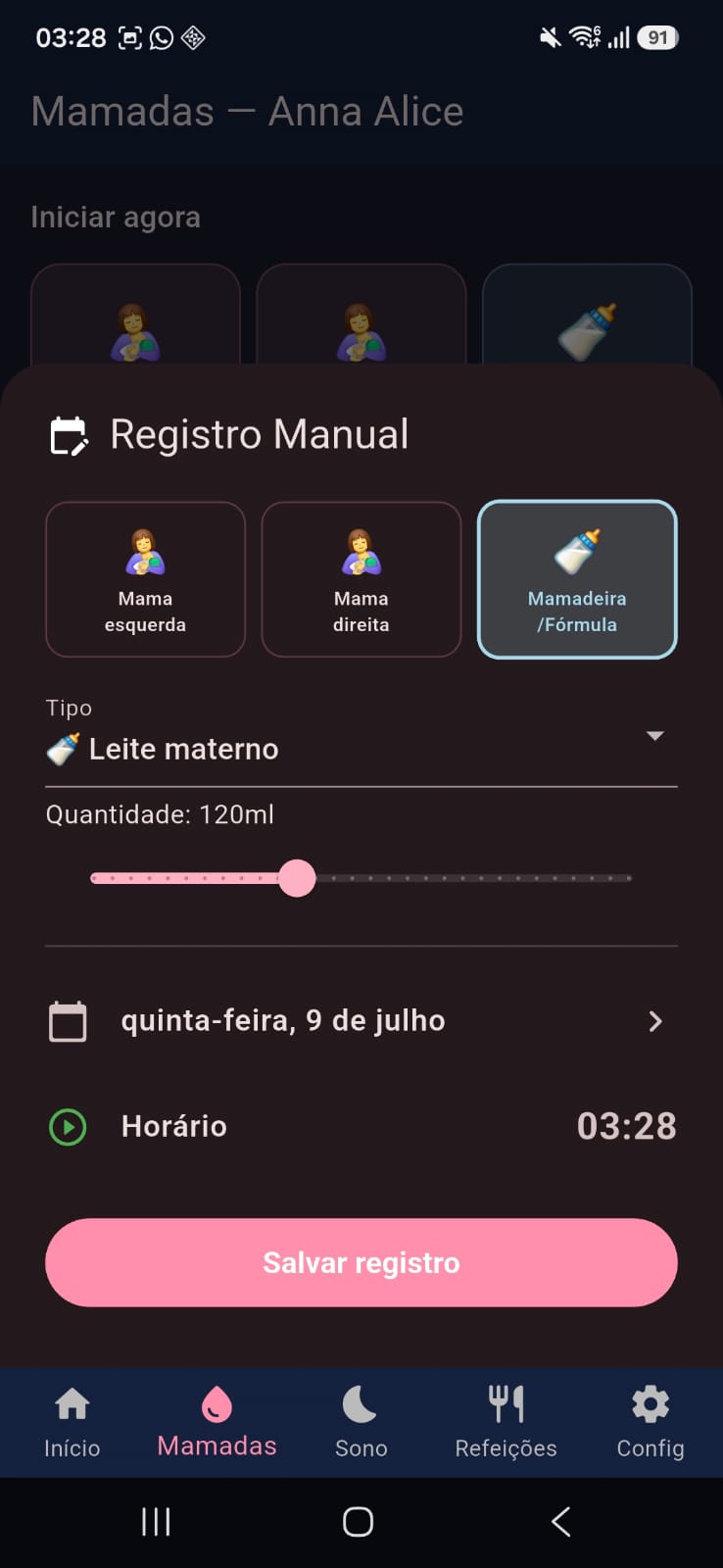
- Or tap "Manual Entry" to log a feeding that already happened, choosing the date, start and end times.
😴 Sleep
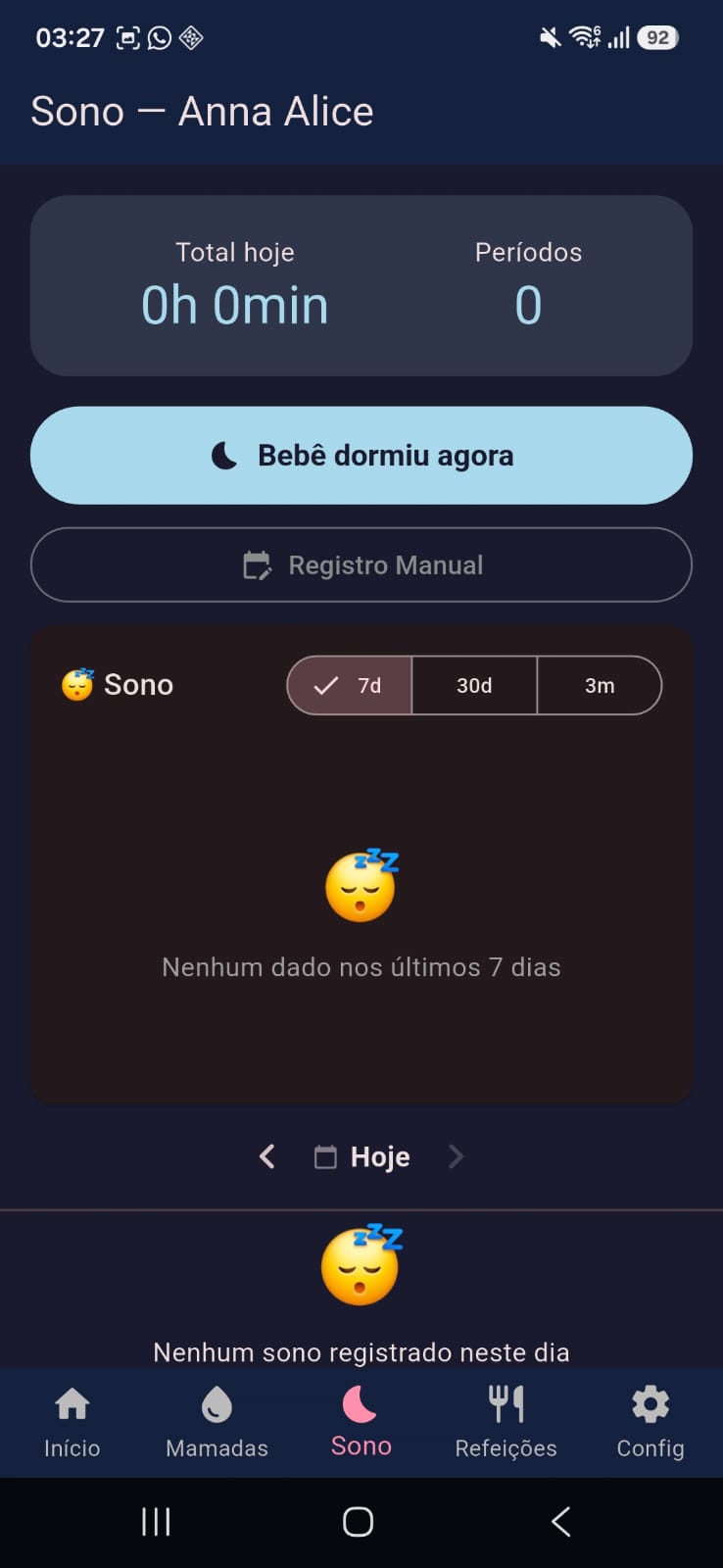
- On the Sleep tab, tap "Baby fell asleep now" to start the timer.
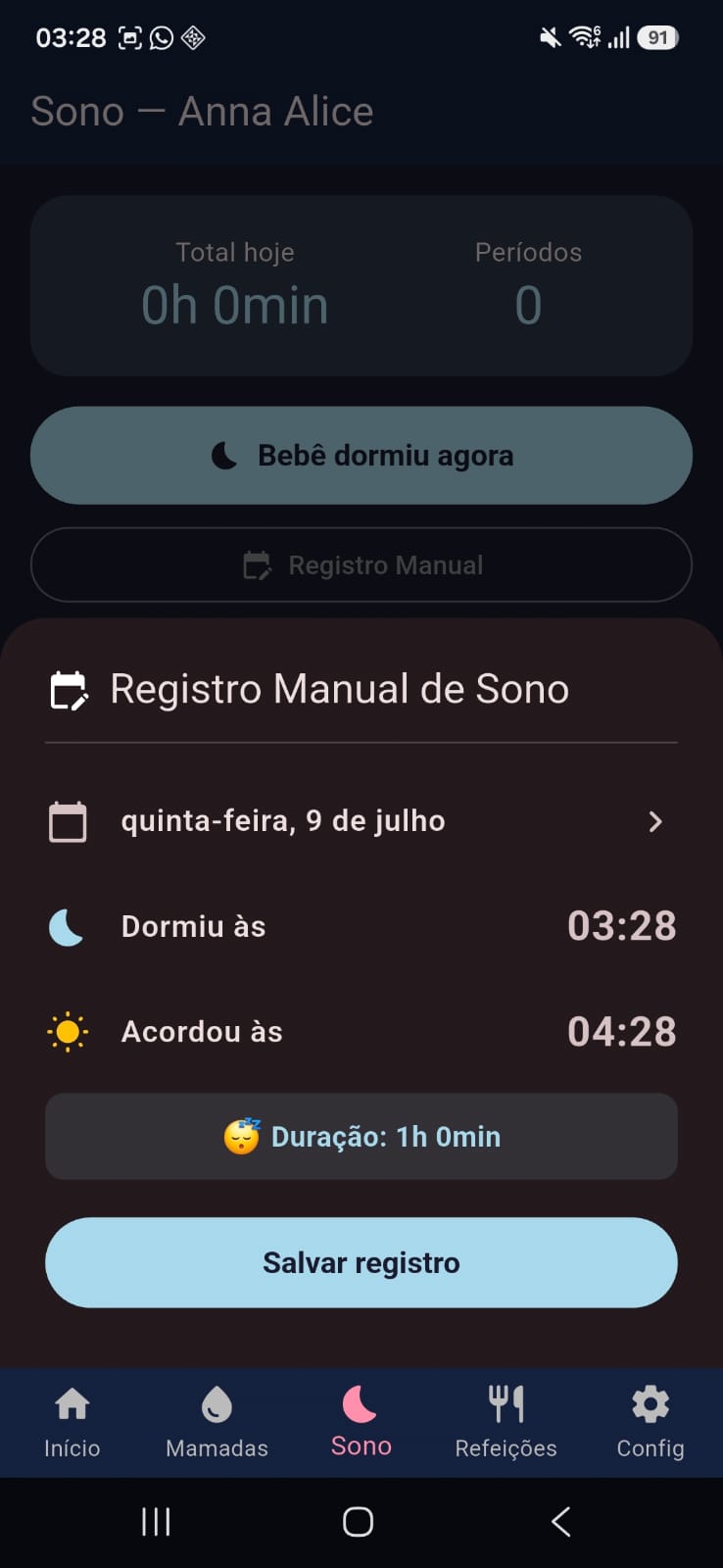
- Or use "Manual Entry" to log a sleep period that already happened.
🥦 Meals
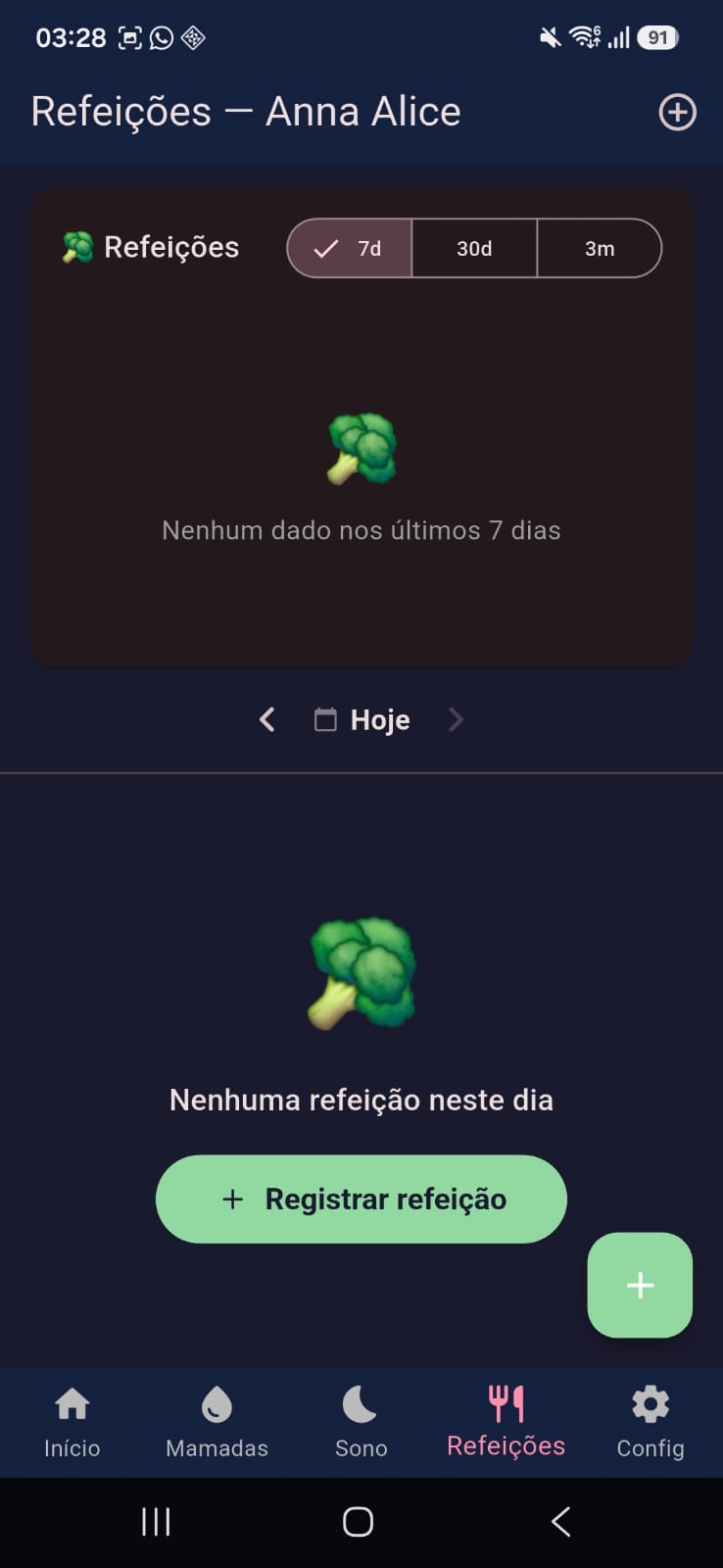
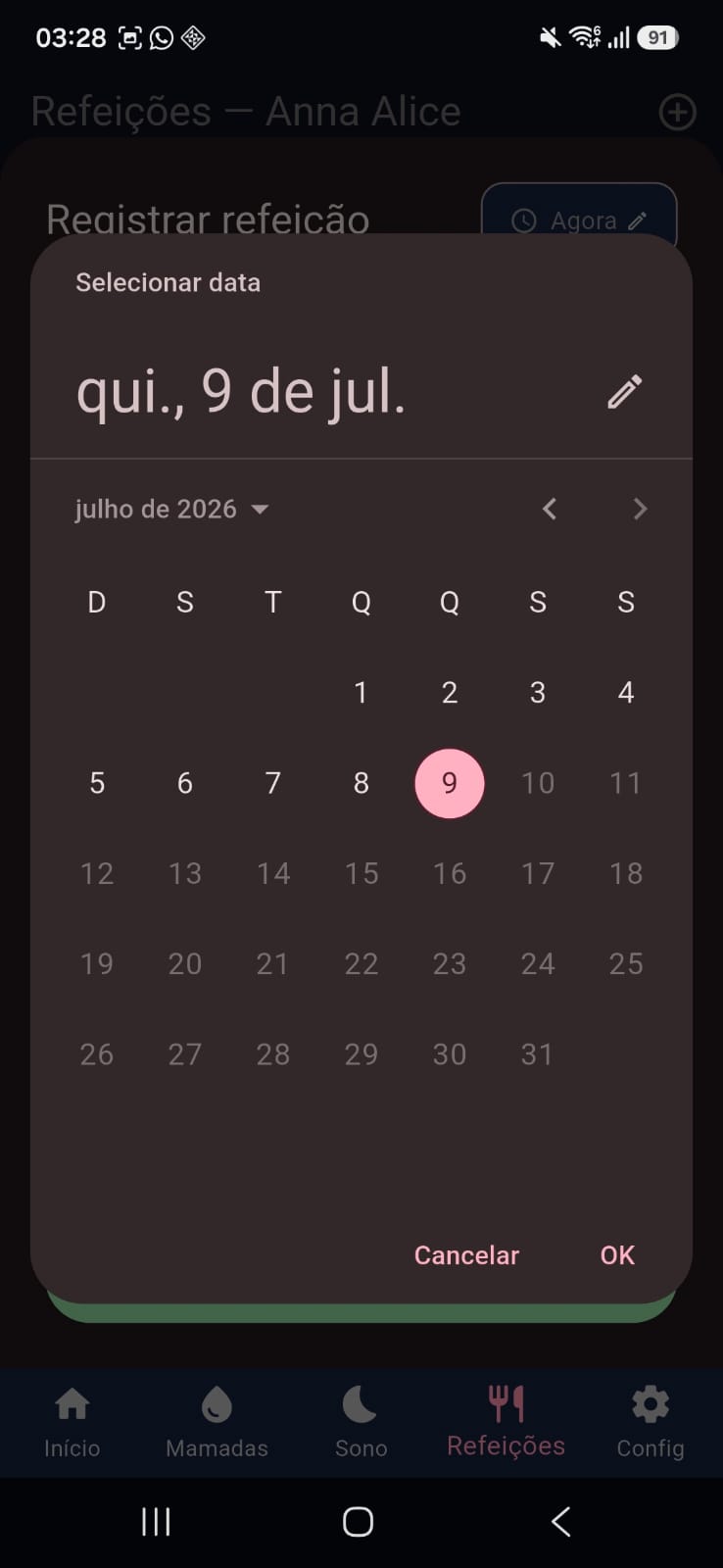
- On the Meals tab, tap "Log meal".
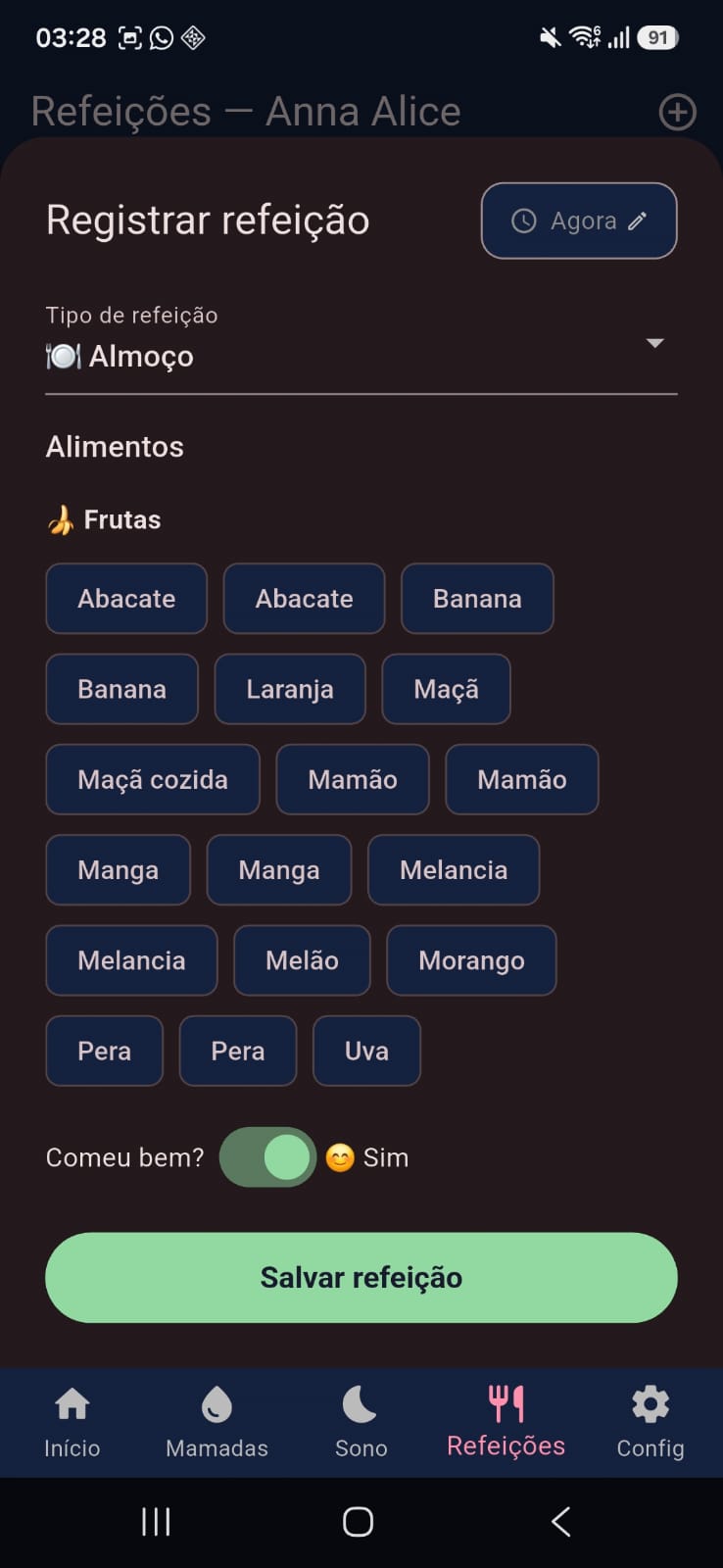
- Choose the type (breakfast, lunch, etc.) and the foods offered.
- Mark whether your baby ate well and, if needed, adjust the date/time.
🩲 Diapers
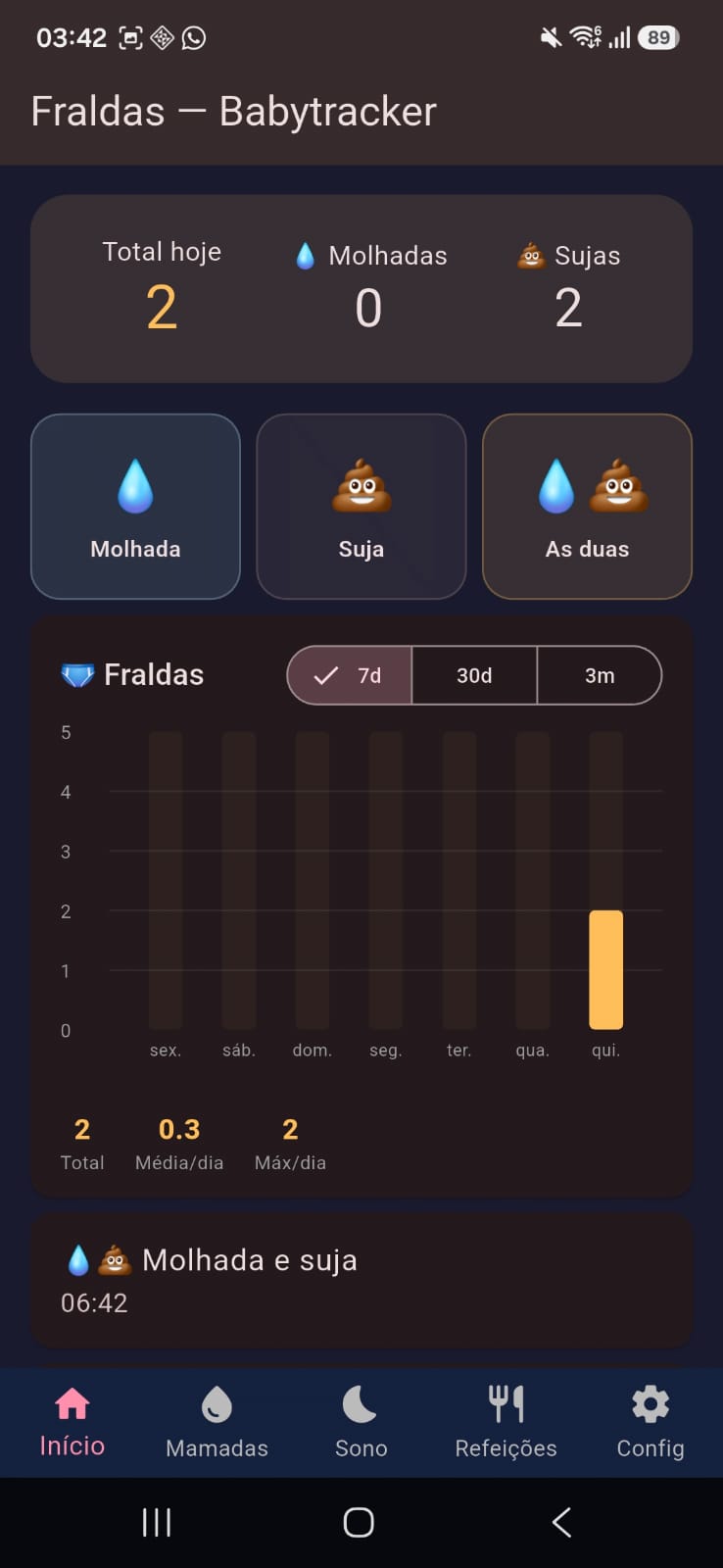
- On the Home screen or the Diapers tab, tap "Wet", "Dirty" or "Both" to log the change right away.
📊 View history and charts▾
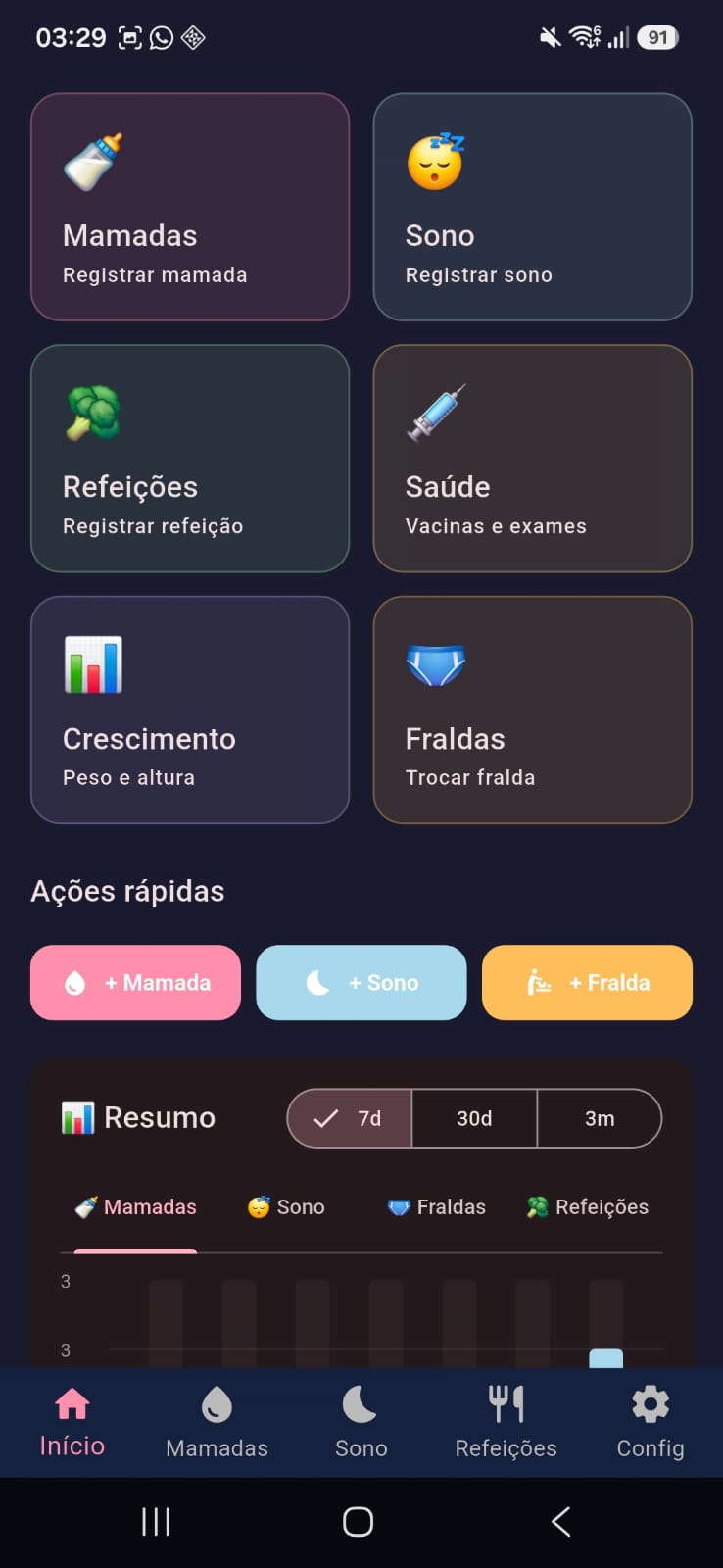
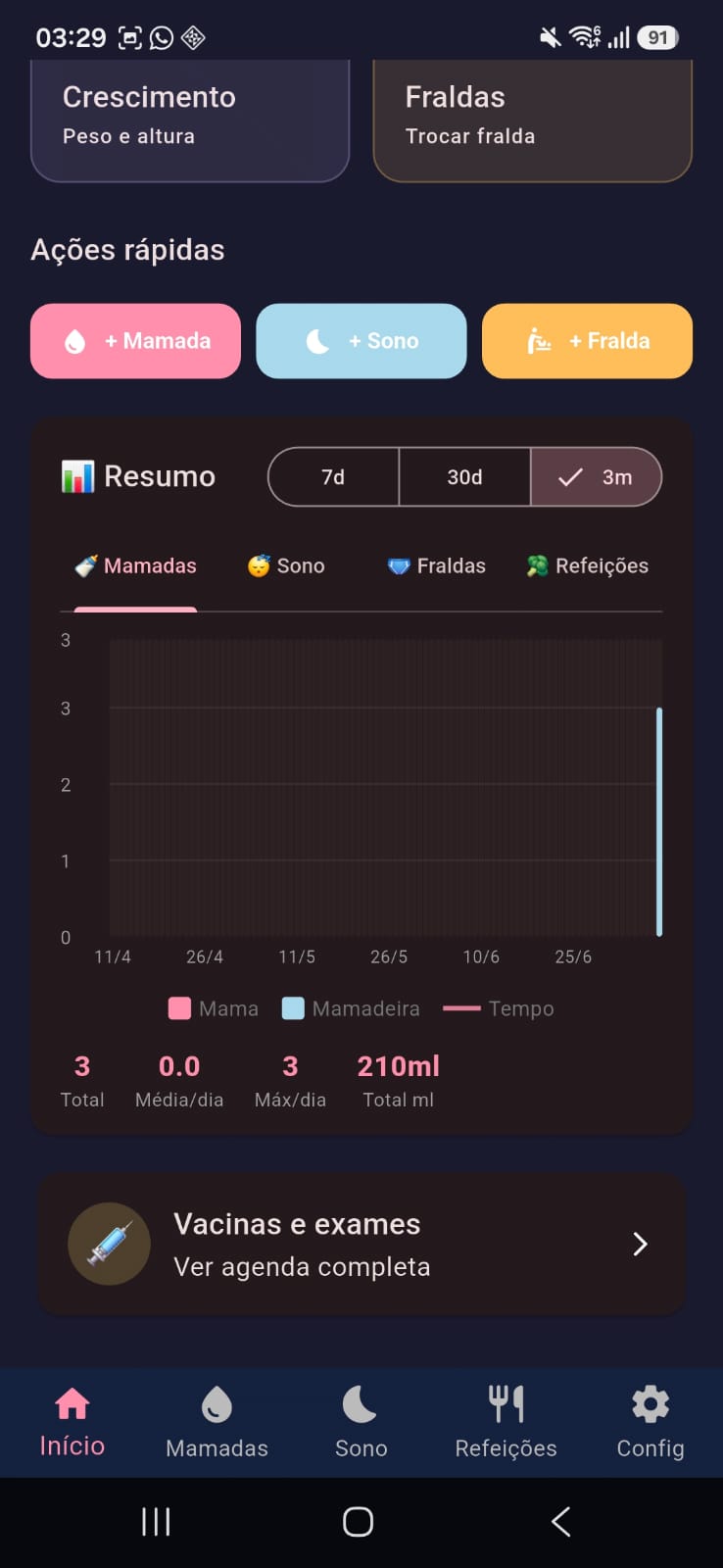
- The Home screen shows quick shortcuts for everything, plus a general summary of the selected baby.
- Tap the 7d / 30d / 3m tabs on the "Summary" chart to change the time range.
- Inside each screen (Feedings, Sleep, etc.) there's also a chart and the day's history, with arrows to navigate between dates.
💉 Vaccines and exams▾
Vaccines
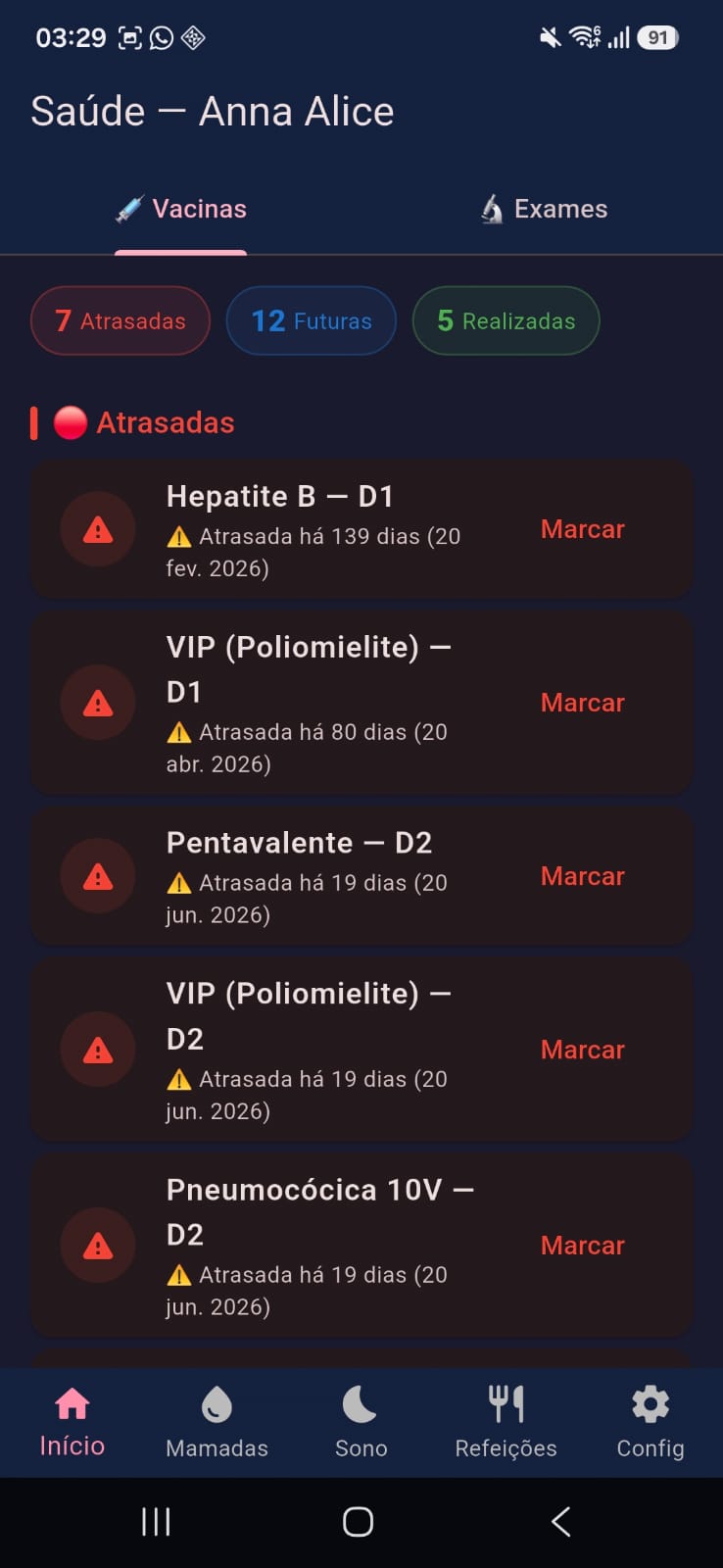
- On the Health → Vaccines tab, the SUS (Brazil's public health system) schedule comes pre-loaded, calculated from your baby's age.
- Tap "Mark" next to a vaccine to record that it was given.
- You get an automatic reminder at 9am on the day of each upcoming vaccine.
Exams
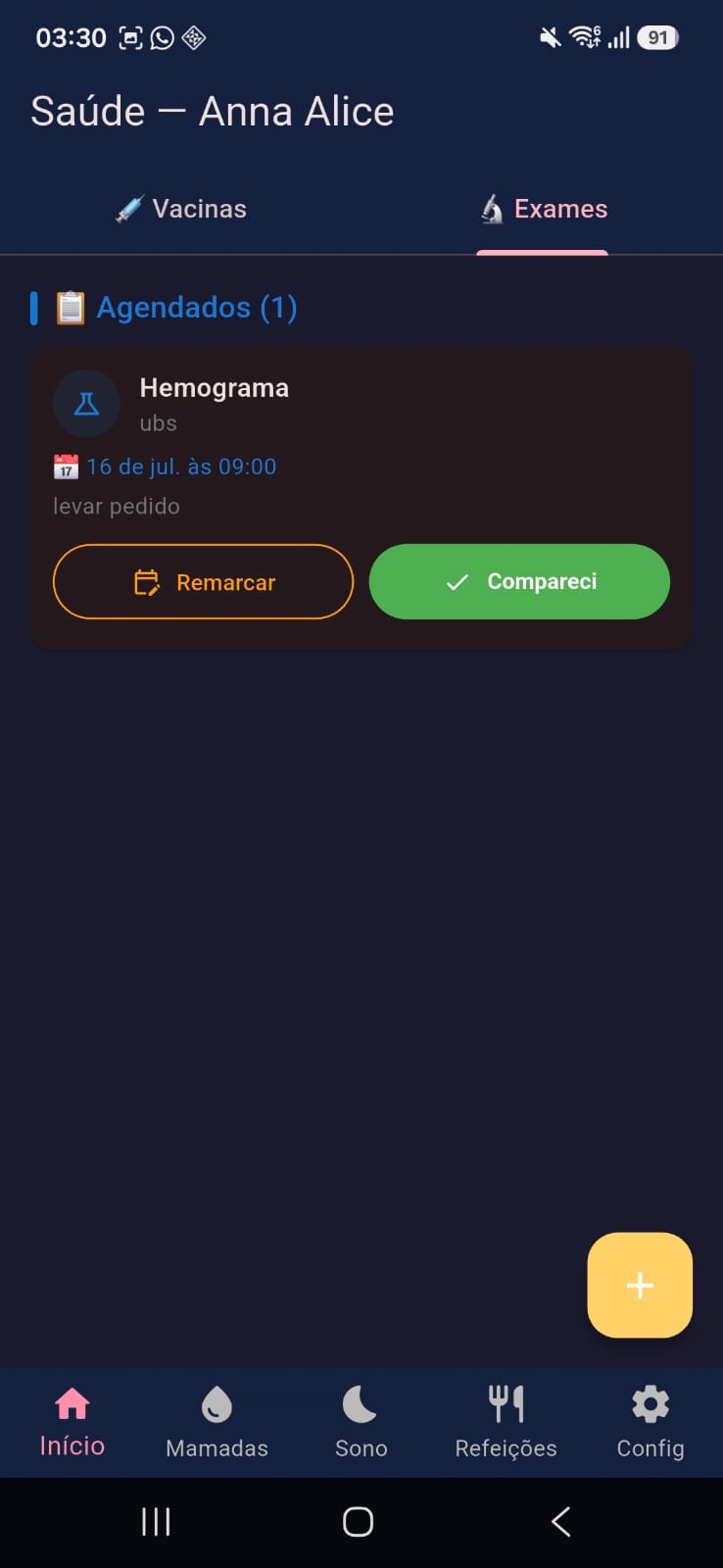
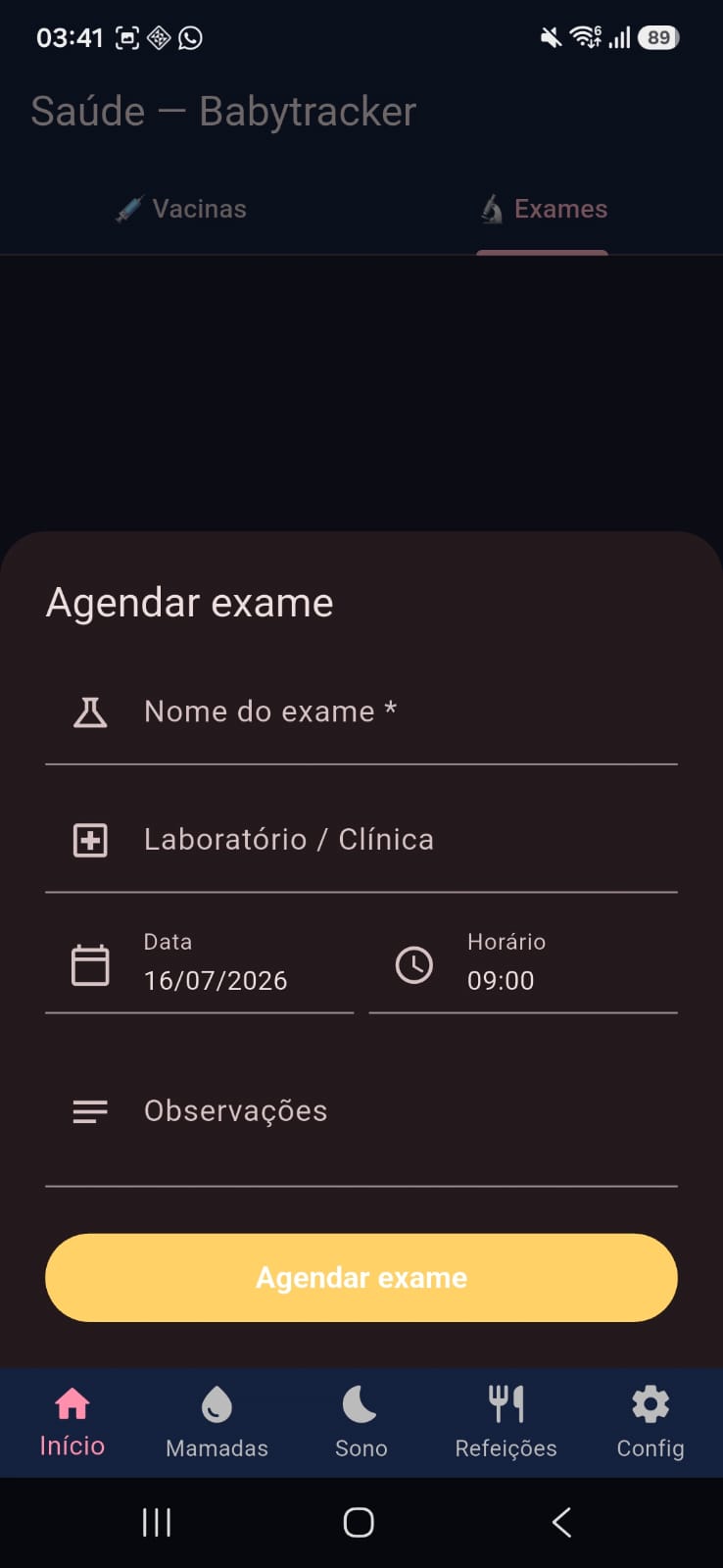
- On the Health → Exams tab, tap "Schedule exam".
- Fill in the name, lab, date and time.
- Once it's done, tap "Attended" to mark it as completed, or "Reschedule" to change the date.
📏 Track growth▾
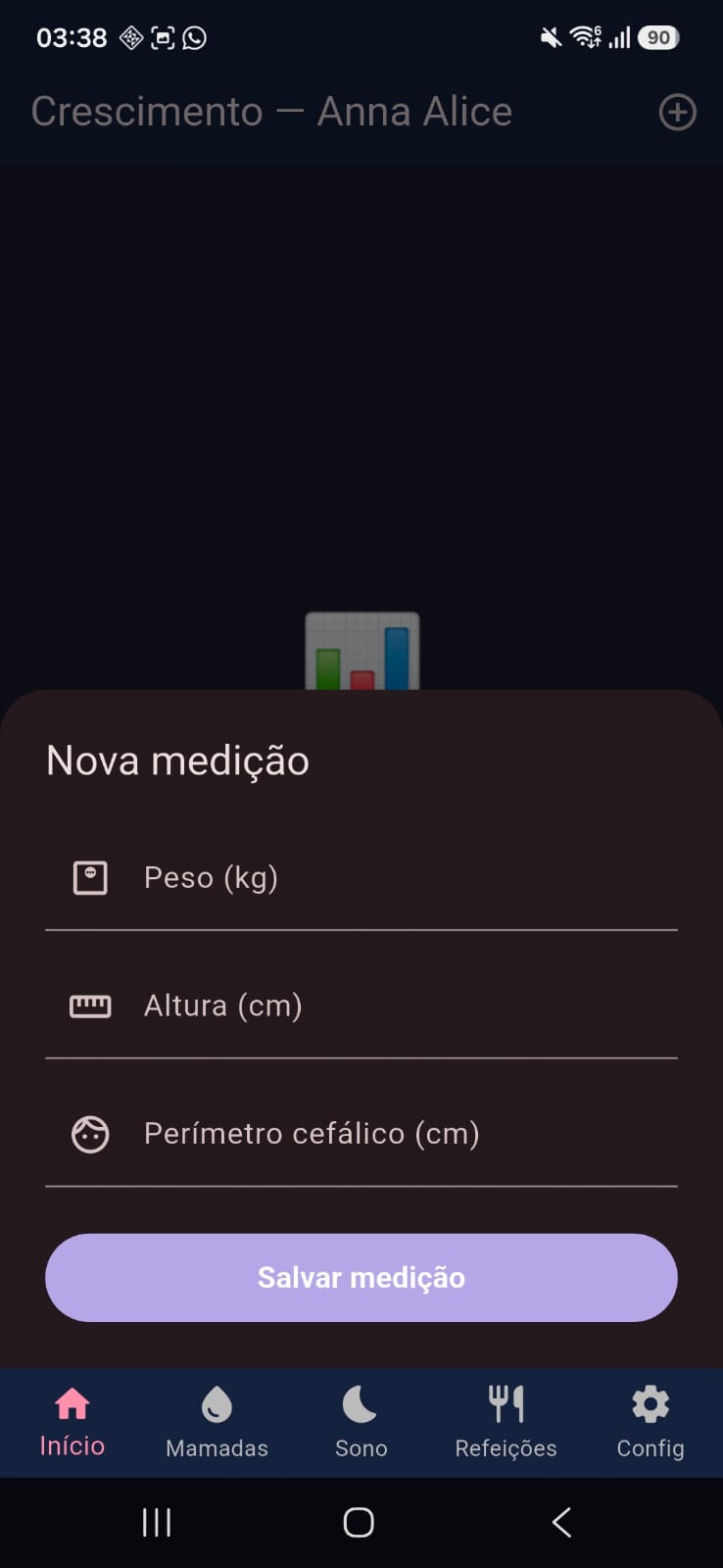
- On the Growth tab, tap the + to log a new measurement.
- Fill in weight, height and/or head circumference — you don't need to fill in all three.
- Tap "Save measurement". The growth chart updates automatically.
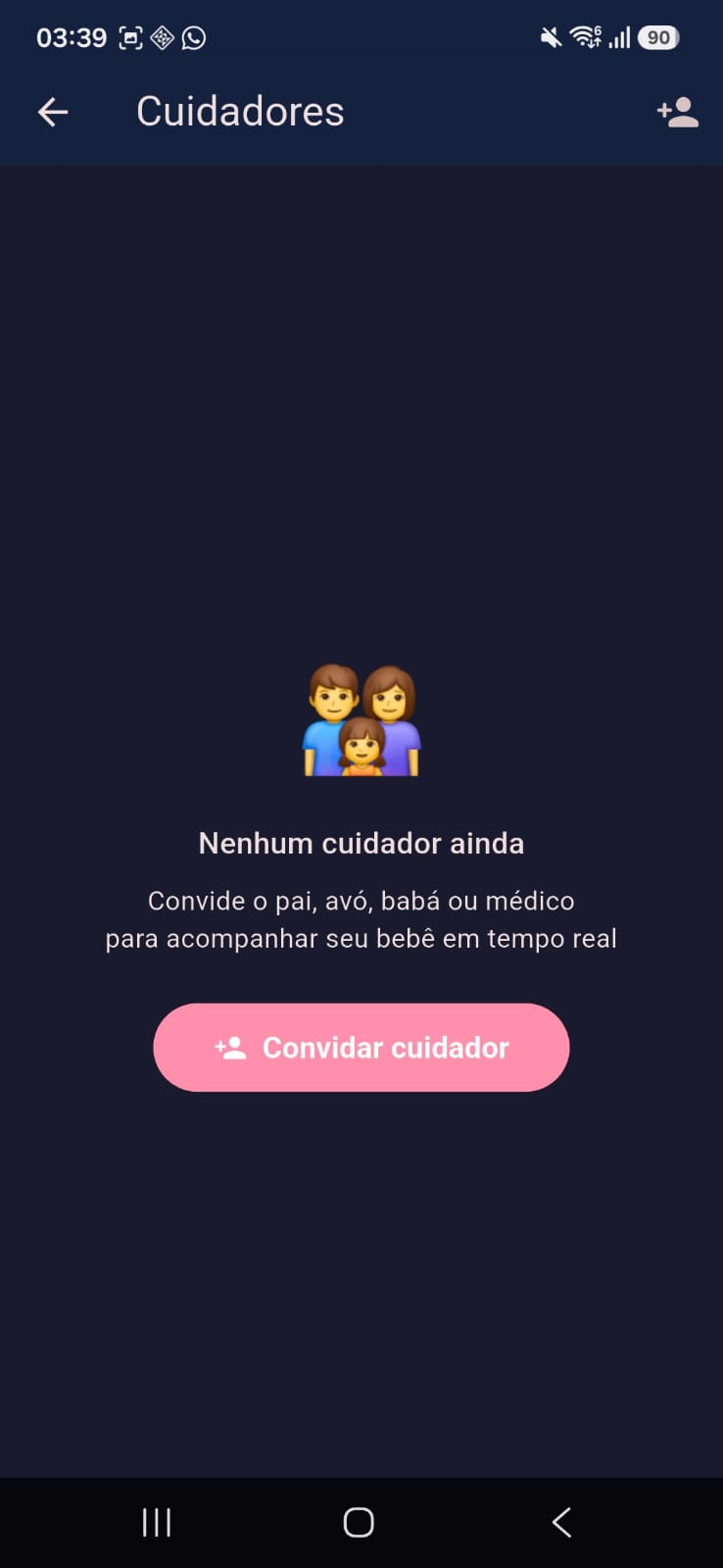
👨👩👧 Invite a caregiver▾
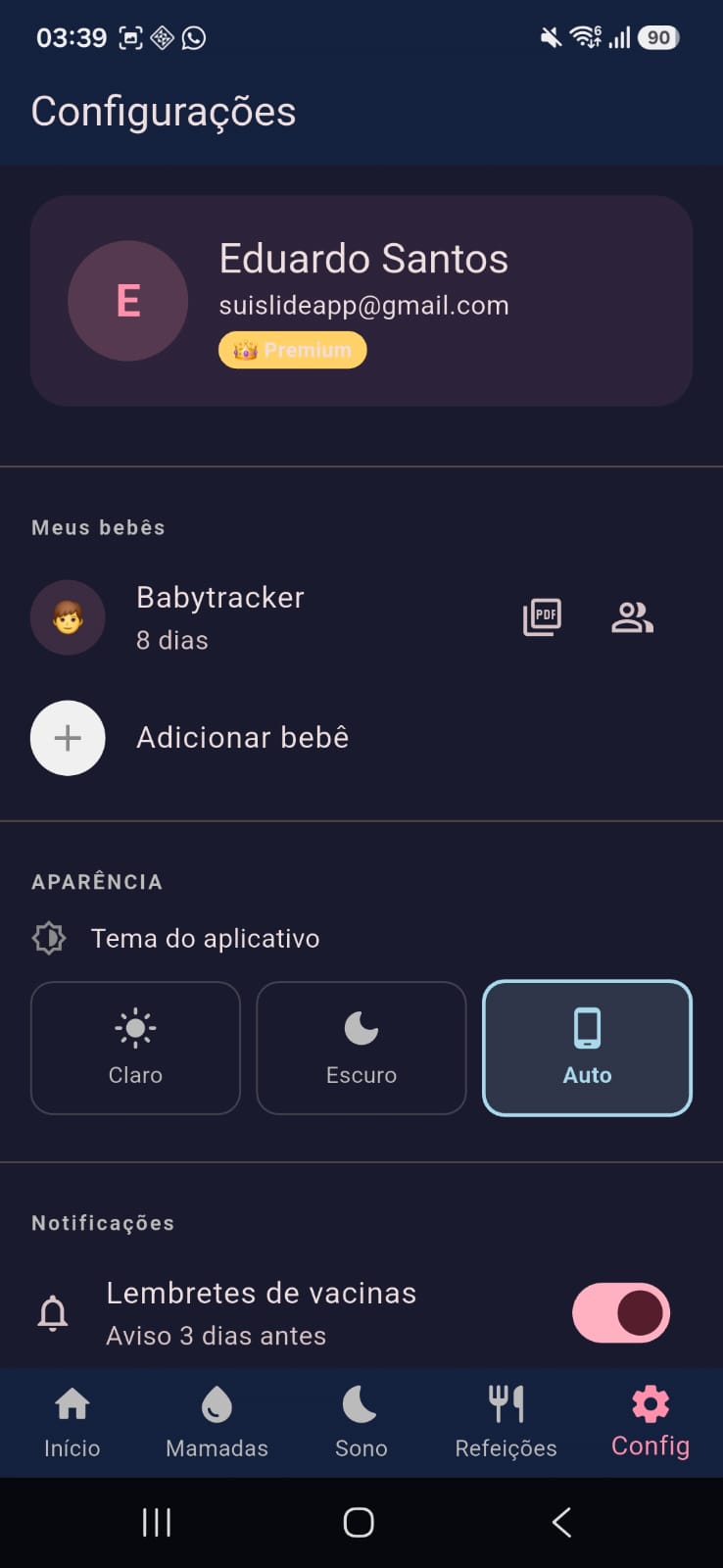
- Go to Settings and tap the people icon 👥 next to the baby's name.
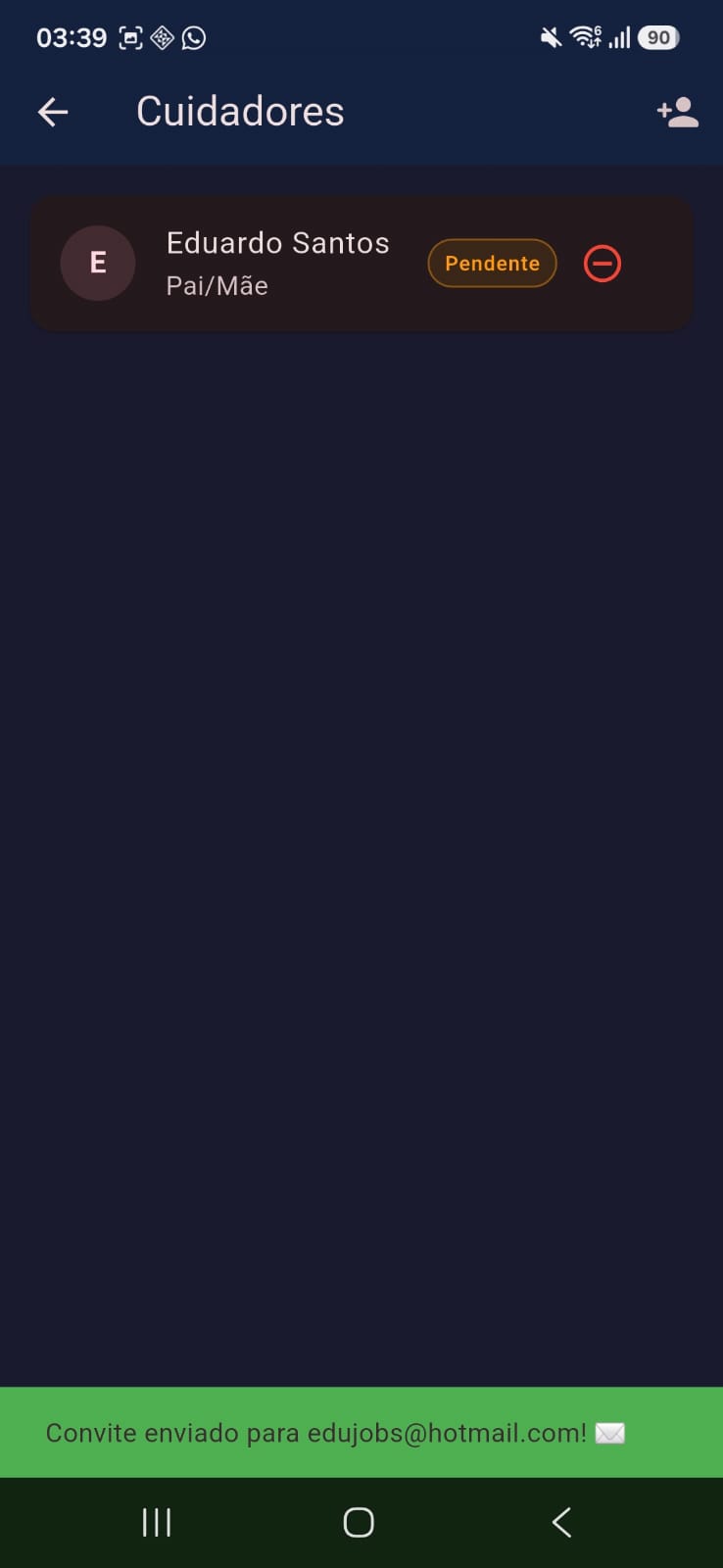
- Tap "Invite caregiver" and enter the person's email (dad, grandma, babysitter, pediatrician...).
- An invite is sent by email. Until the person accepts, it shows up as "Pending".
Inviting caregivers is a Premium feature.
✉️ Accept a caregiver invite▾
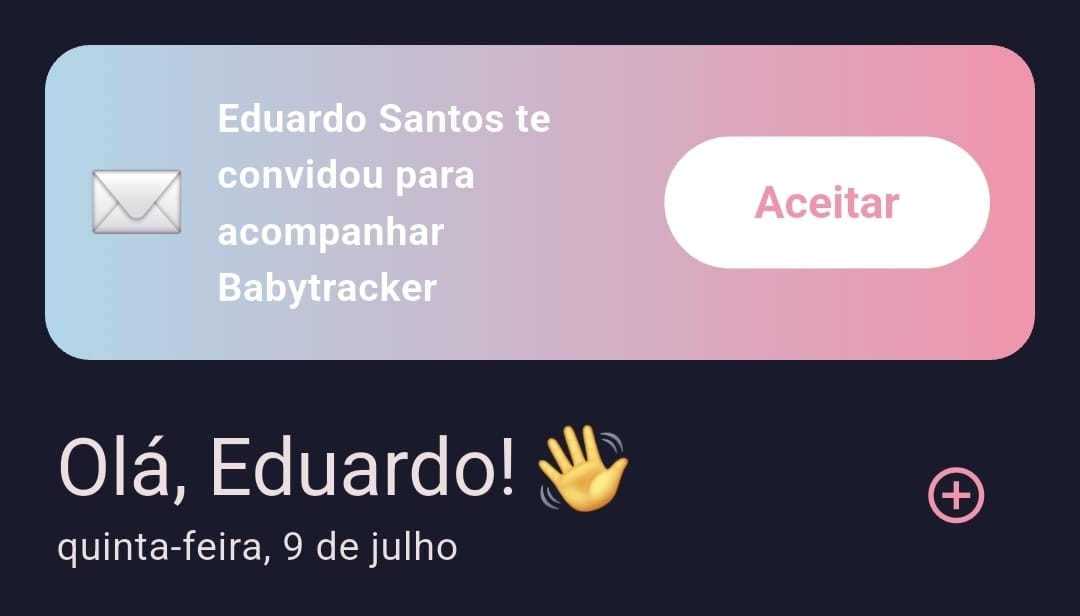
- If someone invited you, a notice appears at the top of your Home screen as soon as you open the app.
- Tap "Accept" — that's it, you can now view and log data for that baby too.
🔔 Turn on caregiver activity alerts▾
- In Settings, under each baby's name there's a toggle "Notify me when another caregiver logs something".
- With it on, you get a phone notification whenever someone else with access to that baby logs something — even if the app is closed.
- Each person (owner or caregiver) turns this alert on or off just for themselves.
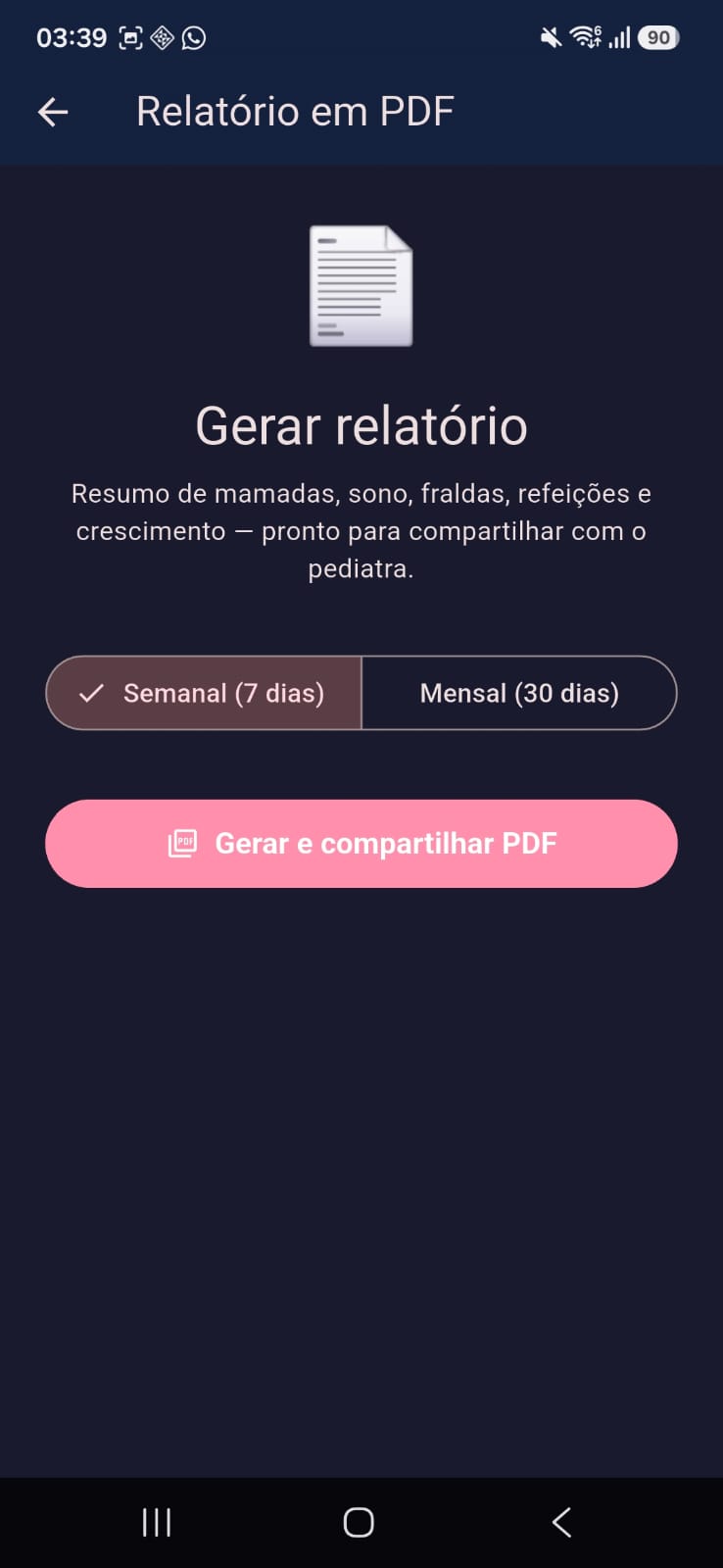
📄 Generate a PDF report▾
- In Settings, tap the PDF icon 📄 next to the baby's name.
- Choose the time range: weekly (7 days) or monthly (30 days).
- Tap "Generate and share PDF" — a summary of feedings, sleep, diapers, meals and growth is put together instantly, ready to send to the pediatrician.
PDF reports are a Premium feature.
👑 Subscribe to Premium▾
- Tap the "Subscribe to Premium" banner on the Home or Settings screen.
- See everything Premium unlocks: unlimited babies, multiple caregivers, PDF reports, full history and no ads.
- Choose the monthly or yearly plan and tap "Subscribe" — billing is handled directly by Google Play, and you can cancel anytime.
🗑️ Delete an entry▾
- In the day's list of entries (Feedings, Sleep, Meals or Diapers), swipe the item sideways.
- Tap "Remove" on the confirmation — this action can't be undone.
Swipe the entry in the list to reveal the remove option.
🚪 Leave a shared baby▾
- In Settings, on the "My babies" list, babies that someone else shared with you show up with "🔗 Shared by [name]".
- Tap the exit icon next to that baby's name and confirm.
- You'll stop seeing that baby's data, but you can be invited again at any time.
Exit icon next to babies shared with you.